Download the data
Everything so far leads here: your paper forms as rows and columns that you can sort, chart and share.
Who can download
The Owner and Managers. They are the ones who see Data in the menu.
Prepare a file
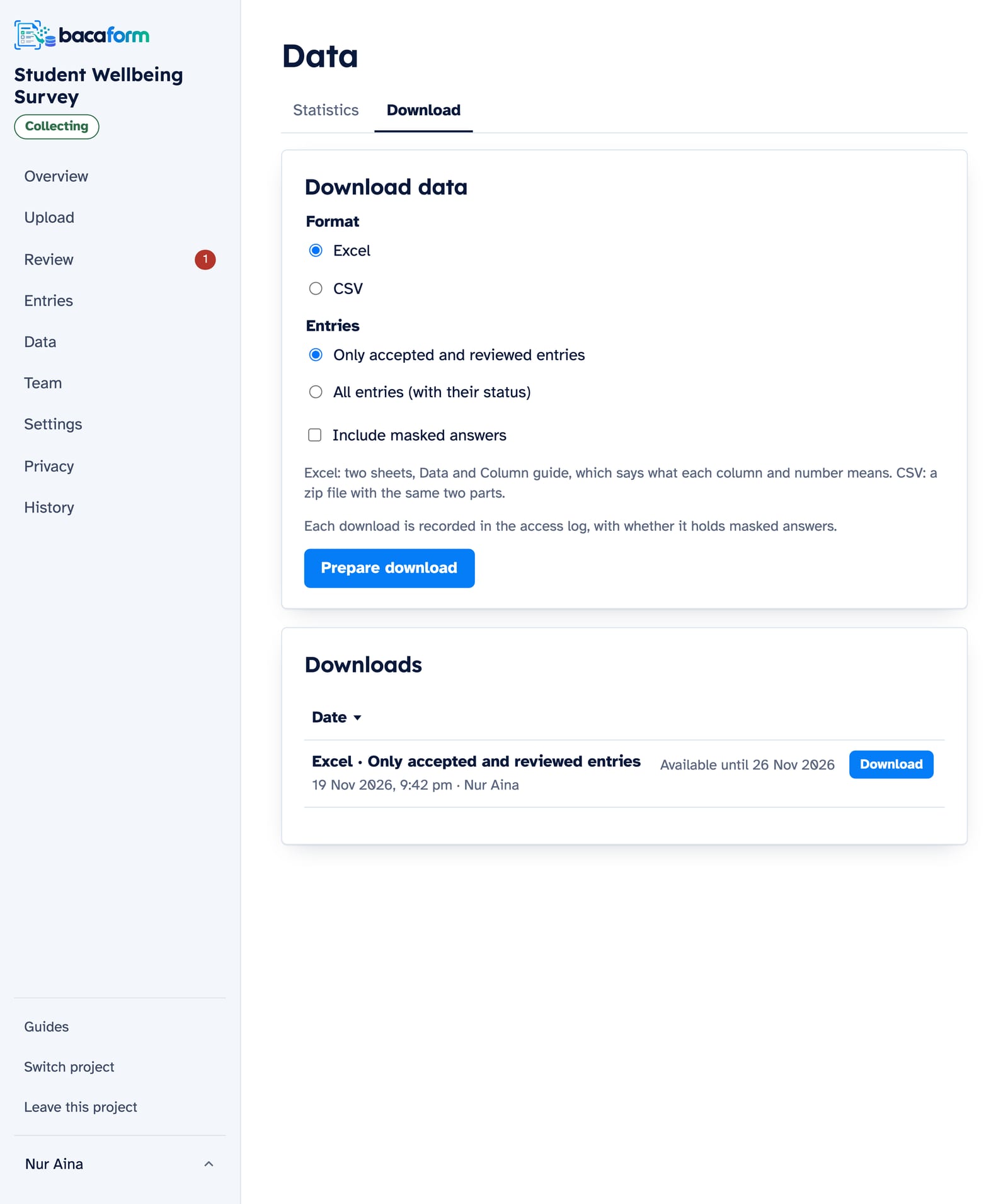
- Open Data and choose the Download tab.
- Under Format, pick Excel or CSV.
- Under Entries, decide what goes in. Only accepted and reviewed entries is already selected and gives you the finished ones. All entries (with their status) adds the ones still waiting, with a Status column so you can tell them apart.
- If your form has masked answers, tick Include masked answers when you need them in the file.
- Press Prepare download.
A small project is ready almost at once. For a large one, carry on with your day: Bacaform emails you when the file is ready. It then sits under Downloads with a Download button for 7 days. If you come back later than that, Prepare it again makes a fresh one.
What is in the file
The Excel file has two sheets.
- Data has one row for each entry and one column for each question on your form. Each row also carries the entry number, the date the form was filled in, who uploaded it, its status, and who reviewed it and when.
- Column guide describes every column: its short name, its answer type, the answers it allows and, for a total, how it is worked out. Pass it along with the data and a colleague can understand the file without asking you.
A few details that save guessing:
- Where a question allows several ticks, the answers share one cell, separated by semicolons.
- A signature box becomes “signed or not”.
- Dates arrive as real dates, so you can sort and filter by them.
CSV gives you the same two parts in one zip file, with dates written as year-month-day.
Excel or CSV?
Choose Excel if you will open the file in Excel or Google Sheets. Choose CSV if the data is going into another program.
A quick look without downloading
The Statistics tab draws a chart for every question, with the average and middle value for numbers. Compare by splits every chart by the answers to another question, which is handy for comparing branches, classes or dates. Print this page gives you a paper copy for a meeting.
Keeping the page images
When a project is closed, its Owner can also prepare All page images: one file holding every page, named by entry number and page, together with the data. It is the complete record of the project in one place.