
Team and roles
A project can be yours alone, or shared with the people who help you. Each person gets a role, and the role decides what they see and do.
The four roles
- Uploader. Sends forms in, by scanner or phone. Sees their own uploads and nothing of the answers. Right for the person at the front desk, or the one out collecting forms.
- Reviewer. Settles the answers waiting under Review and does the spot checks. Can read the entries, except masked answers. Cannot upload or download.
- Manager. Does everything in the project: sets up the form, uploads, reviews, corrects answers, downloads the data and looks after the Team.
- Owner. The person who created the project. A Manager with a few extra keys: only the Owner can hand over, reopen, archive or delete the project.
One person can hold more than one role. Tick Reviewer and Uploader together for a colleague who does both.
An example
A training company runs a course every month. The coordinator creates the project and is its Owner. Two trainers are Uploaders: at the end of each session they photograph the feedback forms on their phones. An assistant in the office is the Reviewer. The trainers never see what anyone wrote about them, and the coordinator downloads the results.
Invite someone
- Open Team and press Invite by email.
- Enter their Email and tick their Roles.
- Press Send invitation.
They receive a link that works for 14 days. They sign in with that same email address and press Join project. If they have never used Bacaform, signing in creates their account, so there is nothing for them to set up first.
Until they join, the invitation waits under Invitations. If you sent it to the wrong address, Cancel invitation withdraws it.
What joining gives them
Access to this one project, in the roles you chose. Your other projects stay out of their sight. The pages they upload are counted against the account of the person who created the project, so your helpers need no pages of their own. Bacaform charges by the page, not by the person: invite as many people as the work needs.
Change or remove someone
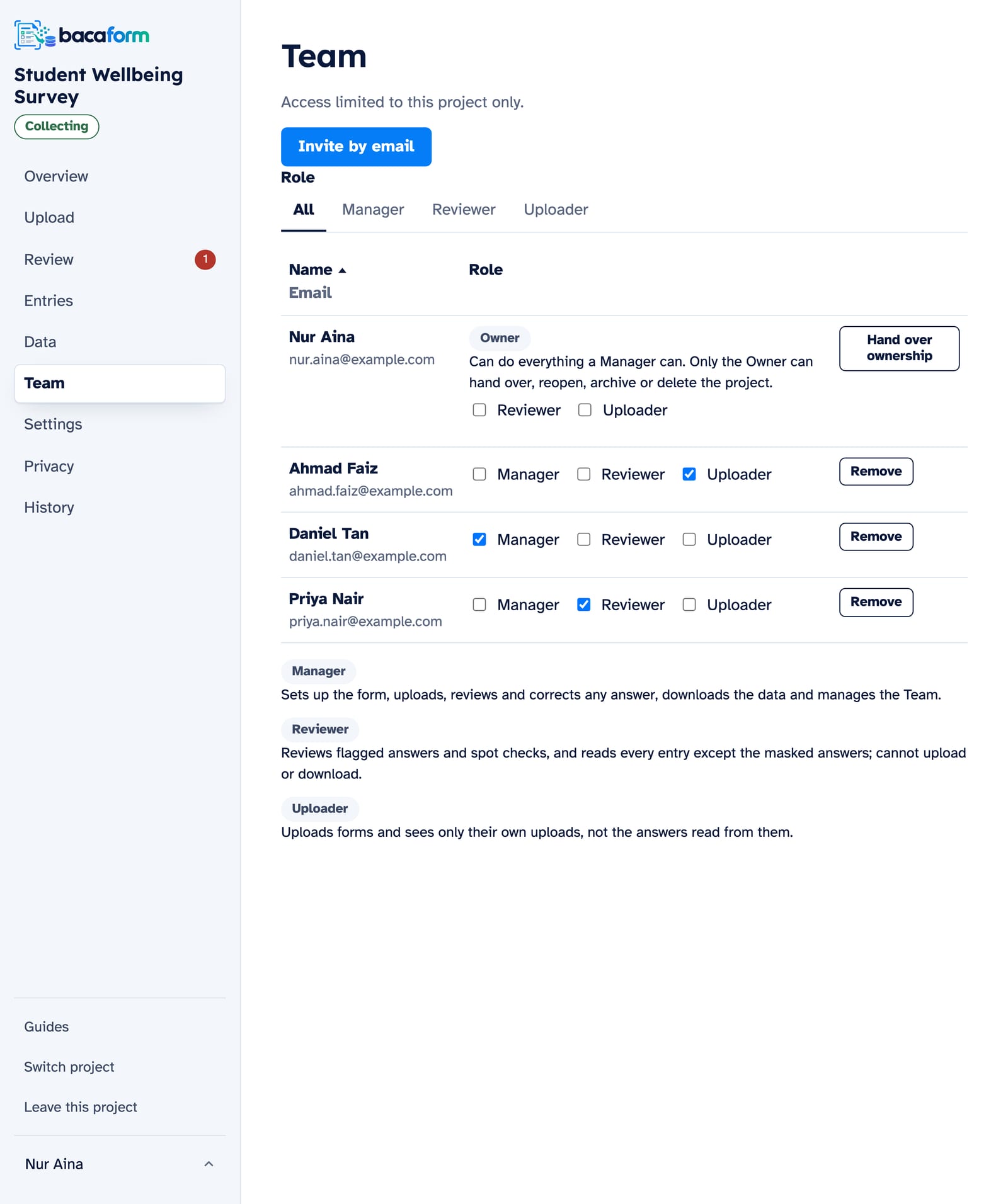
To change what a person can do, tick or untick their roles in the Team list. Remove takes away their access at once. Everything they uploaded and reviewed stays in the project.
Hand over or leave
- Hand over ownership passes the project to one of its Managers. You stay on as a Manager. Use it when a project moves to a new person in charge.
- Leave this project, at the foot of the menu, takes you out of a project you no longer work on. An Owner hands over first.