
Review marked answers
Review is where a person has the last word. Bacaform sets aside the answers it could not be sure of, and you settle each one with a glance at the handwriting.
Who can review
The Owner, Managers, and anyone you invite to the Team as a Reviewer.
Start
A number beside Review in the menu tells you how many entries are waiting. Open the page and press Start reviewing. The oldest entries come first.
One answer at a time
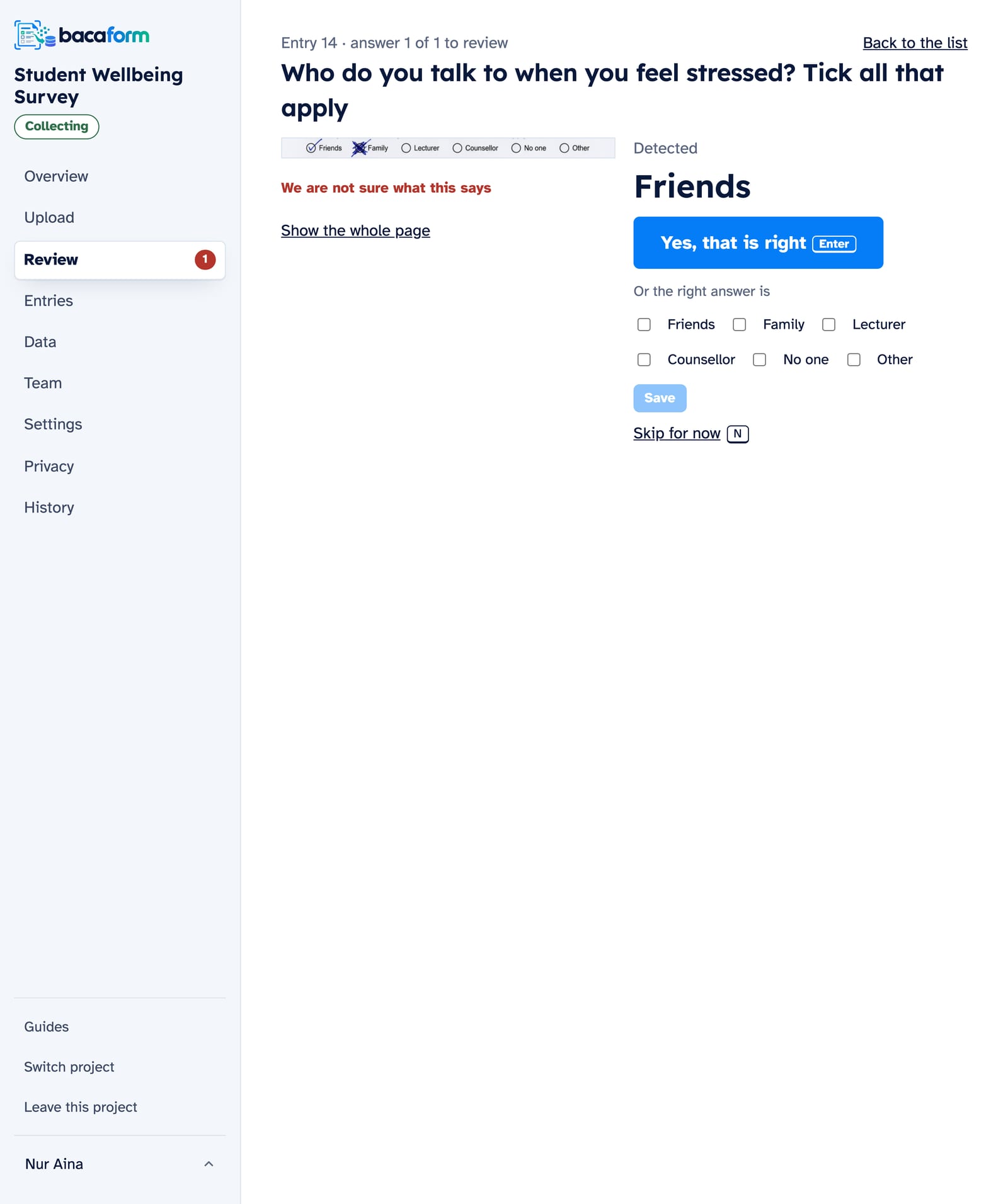
The screen shows a close-up of the handwriting and, under it, what was Detected. A short line says why the answer was set aside, for example “Two answers are marked” or “Faint or unclear”.
- It matches. Press Yes, that is right.
- It doesn't. Pick the correct answer from the choices shown. For a written answer, enter it and press Save this instead.
- You need to see more. Show the whole page opens the full page with that answer outlined.
- You can't tell. Skip for now leaves it in the list for later, or for a colleague.
When the last answer of an entry is settled, you see “Entry 42 reviewed.” and Go to the next one. Changed your mind? Go back returns to the answer you just gave.
Faster with the keyboard
On a computer you can keep your hands on the keys: Enter for “Yes, that is right” and for the next entry, N to skip, B to go back.
Reviewing as a team
Several people can review at the same moment. An entry that a colleague has open is skipped for you, so nobody does the same work twice.
The other boxes on the Review page
- Spot checks. A random sample of entries that were accepted without review. Press Review all answers and compare each one with the paper. It is the simplest way to see for yourself how well your form is being read.
- Manager review. Answers you set to Mask are reviewed here, by the Owner or a Manager only.
- Not usable. Entries that could not be read, each with its reason. Choose Read it anyway, Enter the answers by hand, or Remove.
- Possible duplicates. The same form uploaded twice. Press Compare, then Keep both or Remove this one.
- Fix page splits. For an upload that was divided into entries at the wrong page.
If every answer must be seen by a person
New projects review only the uncertain answers. For work where a person must look at everything, open Settings and change Review policy to Review every entry by hand. Each entry then shows all its answers together, and All correct confirms the lot in one press.
Correcting an answer later
Spotted a mistake after an entry was accepted? The Owner or a Manager can open it under Entries and press Correct. The entry's History keeps the old answer, the new one and who made the change.