
Set up a form
Set-up is where you show Bacaform your form: where each answer sits on the page, and what sort of answer belongs there. You go through it once. Every upload afterwards follows what you settled here.
What you need
Two or three copies of the form, filled in, not blank. A scan or a clear phone photo will do. If the form runs over several pages, put all the pages of one copy into a single PDF.
Step 1: Upload examples
Drop your copies into Filled-in examples, one file for each copy, and continue. Bacaform needs about a minute to work out the layout. You don't have to watch: leave the page and come back if you like. The line under the drop area shows how many set-up pages you have left.
Step 2: Review layout
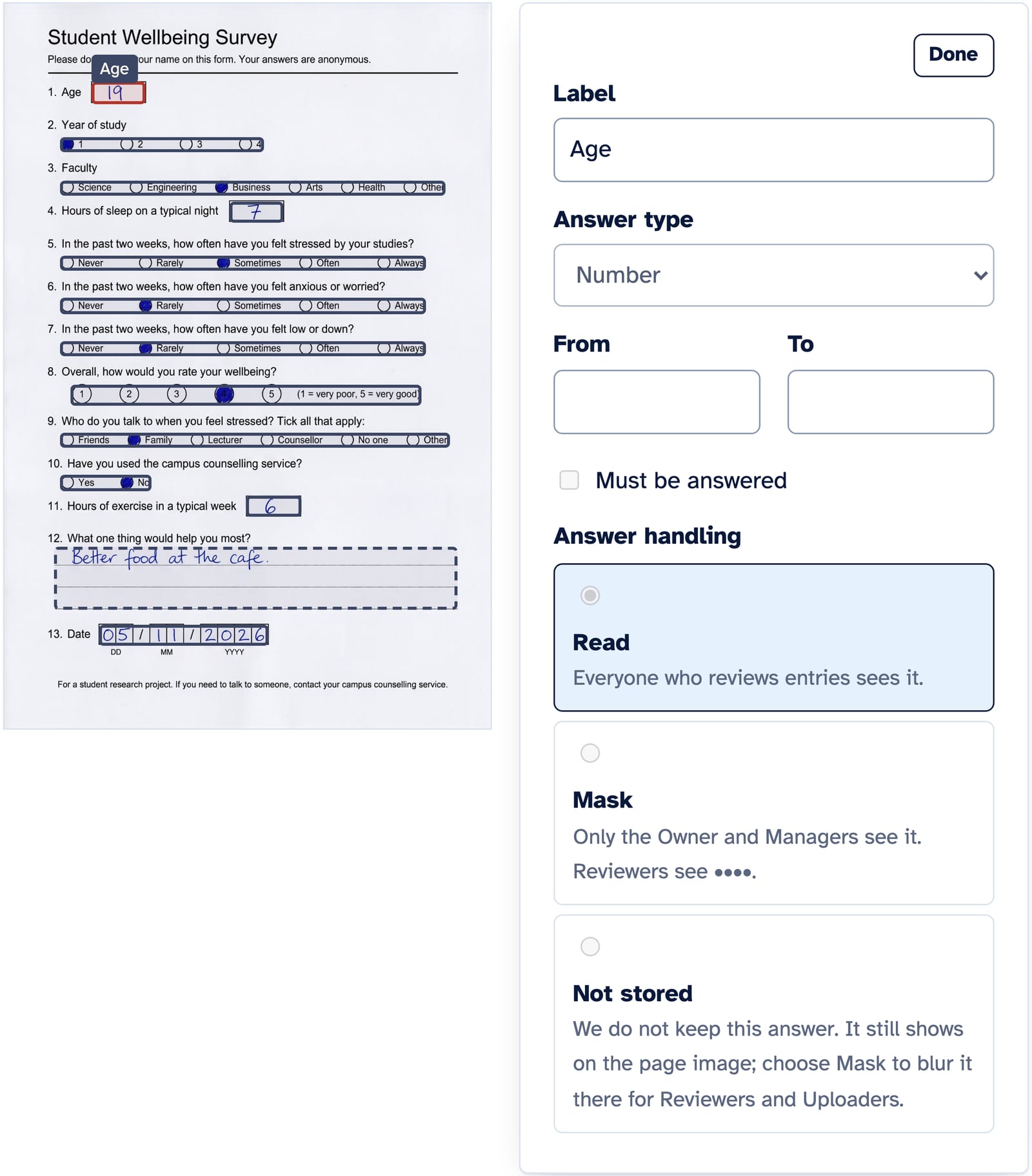
Your form appears with a box over every answer, and the list All questions beside it. Time spent here pays off on every page you upload later.
- Open a box by clicking it. Give it a Label you will recognise later, because you will see it again when you review answers and in your download.
- Check the Answer type. A row of numbers to circle is a Scale, a set of tick boxes is Single choice or Multiple choice, a handwritten line is Text, and so on.
- Move or resize a box by dragging it, or by pulling its red corner.
- Add what is missing. For one answer, press Add a box and drag over it. For a whole section, press Read an area, draw a rectangle around it, and Bacaform finds the questions inside. For a grid, use This is a table.
- Remove a box you don't need with Remove this box.
- Press Done to close the box.
Two choices here are worth a moment:
- Answer handling. Each question is set to Read, Mask or Not stored. Names, ID numbers, phone numbers and email addresses start as Not stored. If you want them in your spreadsheet, change them to Read, or to Mask so that only the Owner and Managers see them.
- Entry numbers. Bacaform can number the entries 1, 2, 3 as they arrive. If your form already carries its own number, choose Read the entry number from the form instead.
Step 3: Questions
Bacaform may ask a few Yes or No questions to be sure it has understood the form, for example whether a total is added up from the rows above it. Some forms get no questions at all.
Step 4: Test
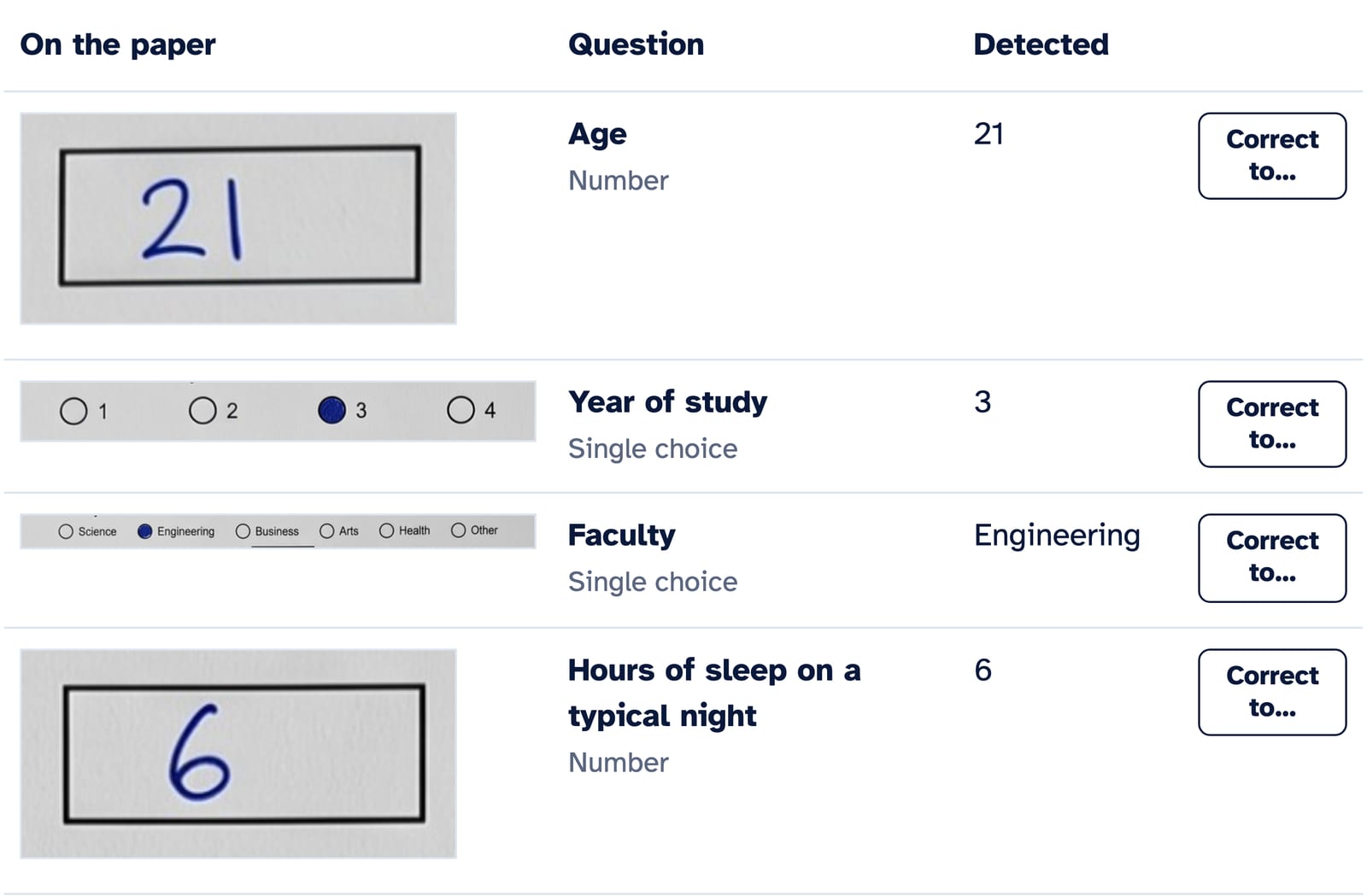
Try the set-up on a real copy before you rely on it. Pick one of Your examples, or upload Another example. Each answer is listed beside the piece of paper it came from. If one is wrong, correct it there. If the boxes themselves are off, Something is wrong takes you back to the layout. When the results match the paper, press This looks right. Pages you test here are not counted in Pages used.
Step 5: Ready
You get a summary: the number of questions and pages, what is masked or not stored, and how entries are numbered. Press Start collecting. The project moves from Setting up to Collecting, and the Upload page opens.
Changing the form later
Forms change. Open Settings and press Edit the form. You work on a new version while uploads carry on with the current one, and you switch over with Use the new version when you are happy with it. Entries already read stay as they are.